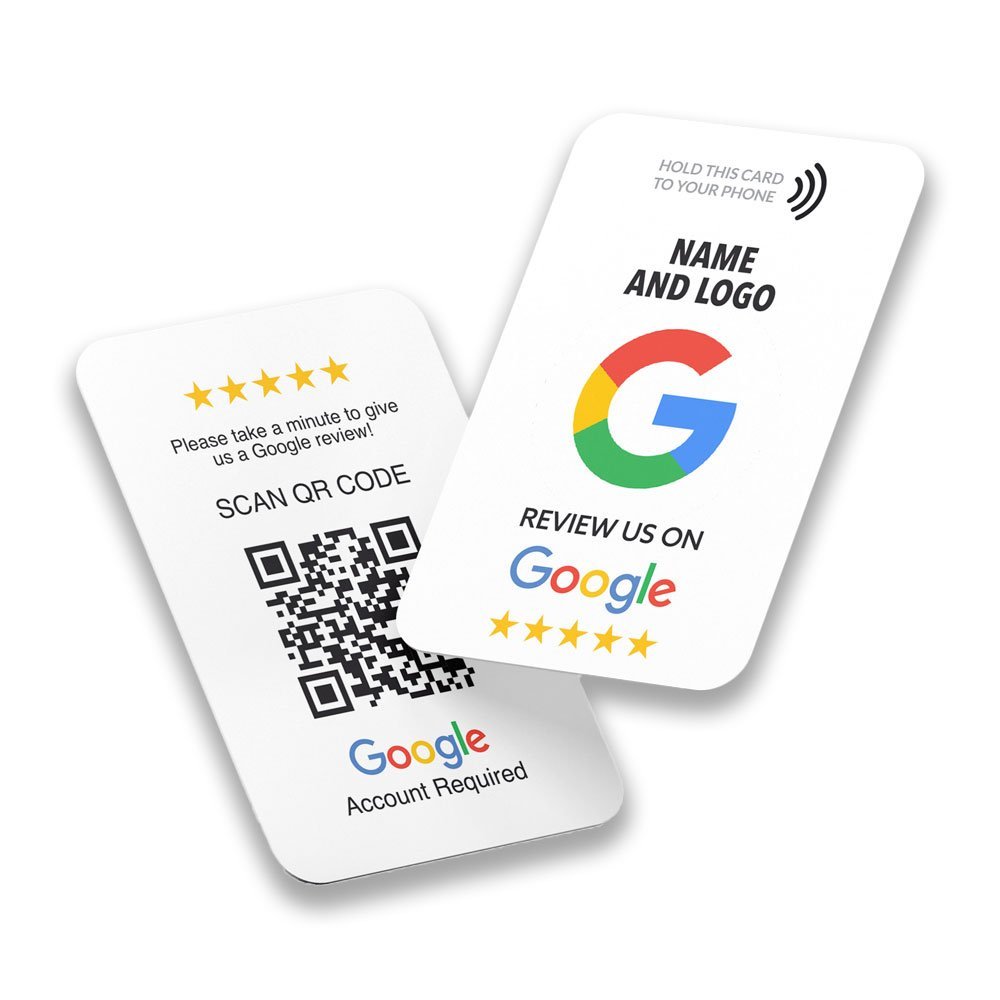
Before you order a review card, print a QR code or put a button on your website, you need one thing: the link that opens your Google review form. Many businesses copy the wrong link, such as the address of their Google Maps listing, and then wonder why customers do not land on a review box. This guide shows how to find the right link, how to test it, and what to do when something goes wrong.
What a Google review link is
A review link is a web address that takes a customer straight to the box where they can give a star rating and write a review for your business. It is different from the address of your Maps listing, which only shows your business page. Customers have to find the review button on that page themselves, and many do not.
Google gives verified business owners a ready-made link and QR code for this purpose. Google’s own help page, tips to get more reviews, describes sharing a Google link or a QR code with customers.
Before you start
- You need a Google Business Profile for your business. If you do not have one, create it first.
- Your profile should be verified. Google asks owners to verify before they can manage a profile.
- Sign in with the Google account that manages the profile.
How to find the link
Google changes its menus from time to time, so the wording may differ slightly on your screen.
Method 1: from Google Search
- Sign in to the Google account that manages your business profile.
- Search for your business name on Google.
- Your profile appears with management options. Look for an option such as Ask for reviews or Get more reviews.
- Choose Share review form, then copy the link. You may also see a QR code you can download.
Method 2: from the Google Maps app
- Open Google Maps and sign in with the managing account.
- Open your business profile from the profile menu.
- Choose the reviews or Get more reviews option.
- Tap Share review form and copy the link.
Method 3: from the Business Profile Manager
If you use the Google Business Profile Manager on the web or the Business Profile app, the same option is under the reviews or marketing section. Look for wording such as Read reviews and Share review form.
What the link looks like
Google’s links typically start with g.page/r/ or search.google.com/local/writereview. Either format is fine. A link that only contains google.com/maps usually opens the listing and not the review form.
How to test your link
- Paste the link into a message and send it to your own phone.
- Open it on an Android phone and on an iPhone, if you can.
- Check that it opens the review form for the correct business and the correct branch.
- Open it in a private or incognito window too, to see what a signed-out customer sees. Customers must be signed in to Google to post, and Google will ask them to sign in.
- If you plan to use a card or QR code, test that too, before you hand any out.
Common problems and fixes
I cannot see “Ask for reviews”
You may not be signed in with the managing account, or your profile may not be verified yet. Check which account you used and complete verification.
The link opens my listing, not the review box
You copied the Maps address. Go back and use the share review form option.
I have several branches
Each location has its own profile and its own link. Use the correct link for each branch, and keep them separate on cards or standees.
I run a service-area business with no shop
You can still have a profile and a review link. Use the link from that profile in the same way.
I changed my business name
Check that the link still points to your profile after the change, and test it again.
Using the link on a review card
Once the link works, you can put it on an NFC card so customers only have to tap. Our Google review card is programmed with your link and tested before dispatch, and carries a QR code too. A review coin, standee or desk plate works the same way. Order, then send us the link on WhatsApp +92 335 6656657. The link is fixed when the product is programmed, so check it twice.
Other platforms
The principle is the same on Facebook, Tripadvisor, Booking.com and others: copy the address of the page where customers write their review, and test it on a phone. See the review cards we make for each platform.
Keep asking honestly
A link makes asking easier. It does not change the rules. Google does not allow rewards for reviews or asking only your happiest customers. Our guide on asking for Google reviews the right way explains what to do and what to avoid.
Frequently asked questions
Is the link free?
Yes. Google provides the review link and QR code to verified business owners at no charge.
Can customers review without a Google account?
No. They need to be signed in to Google to post a review.
Does the link expire?
It should keep working while your profile exists. Test it from time to time, especially after any profile change.
Can I use one link on many cards?
Yes, if they are for the same location. Use a different link for each branch.